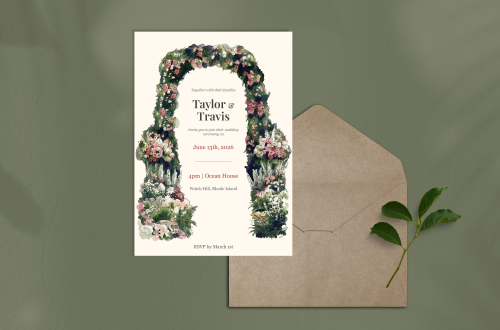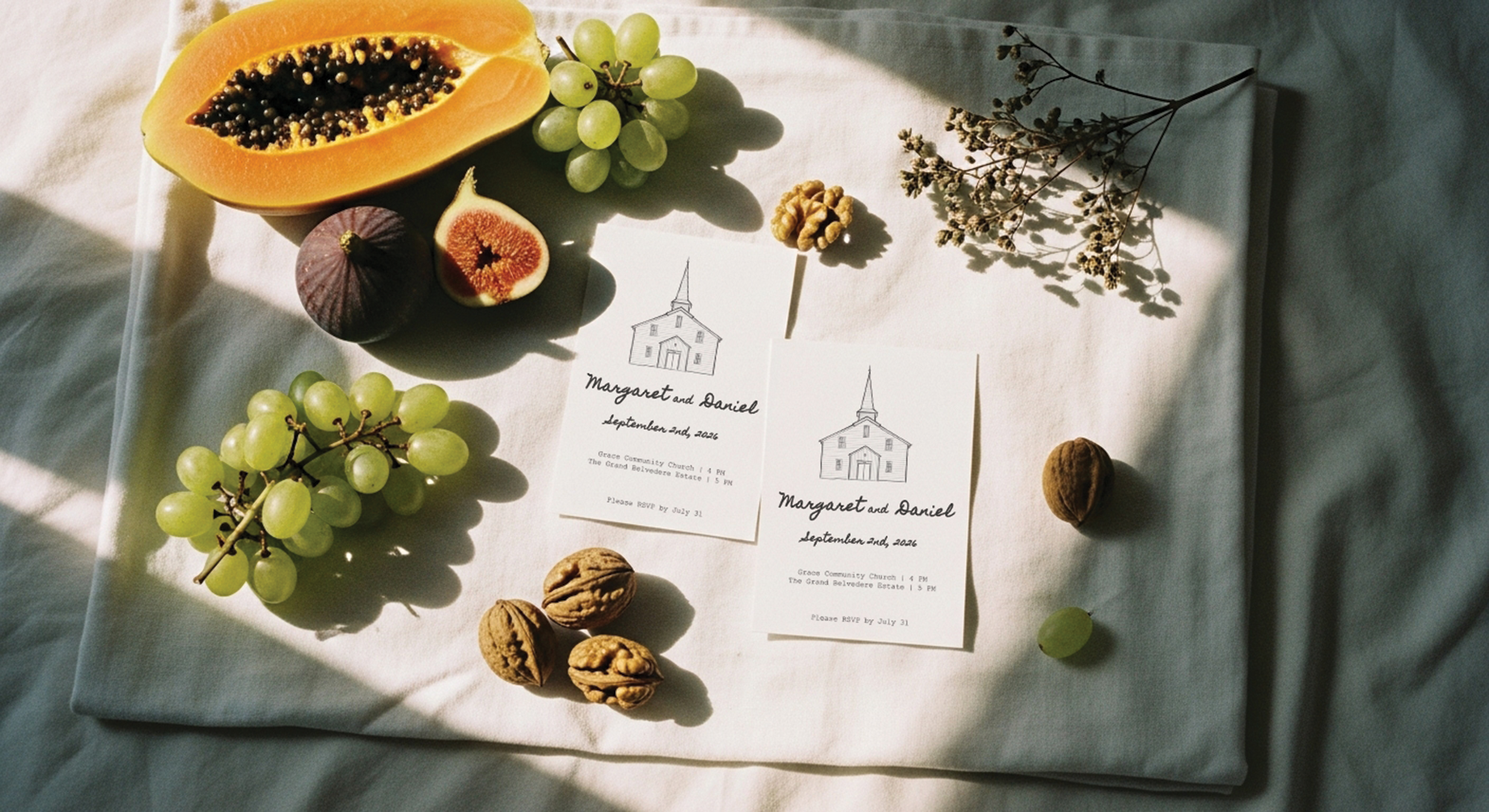
How to Create a Custom Venue Wedding Invitation for Free using AI
Use our free template and customize it with your own wedding venue drawing using free tools.
Custom wedding stationery is usually expensive, but you can get a high-end, hand-drawn look for free using Google Gemini and Google Slides (both free tools). Read below to how to create a custom venue wedding invitation for free using AI. You can get my free template to start customizing yours.
1) Find a reference photo of your venue
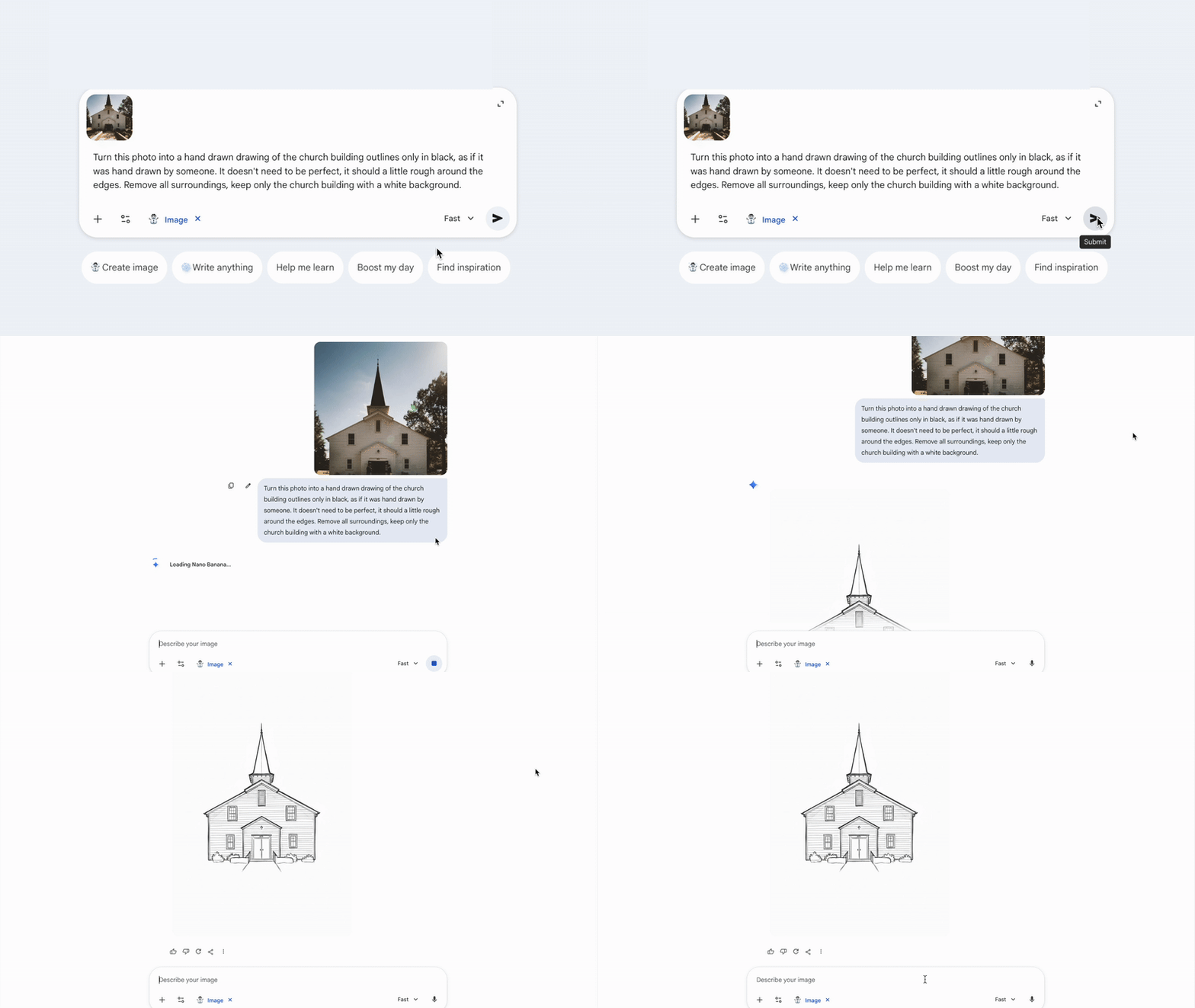
- First, you need a reference photo of your venue. Gemini does a really good job even if you don’t have a high quality photo, but it’s always best to use the best quality you can find. I used a free-to-use image from Pexels for this example. Upload or just copy the image and paste it directly into the Google Gemini chat bar.
2) Generate the venue illustration with Gemini
- First, ask Gemini to turn the photo into a drawing, then you can refine it. My first result looked a bit too digital and “perfect,” so I asked it to make it look more like a hand-drawn draft or a pencil sketch. I wanted to achieve that “artist sketch” vibe.
- Used prompt: “Turn this photo into a hand drawn drawing of the church building outlines only in black, as if it was hand drawn by someone. It doesn’t need to be perfect, it should a little rough around the edges. Remove all surroundings, keep only the church building with a white background.”
3) Customize the invitation template easily in Google Slides
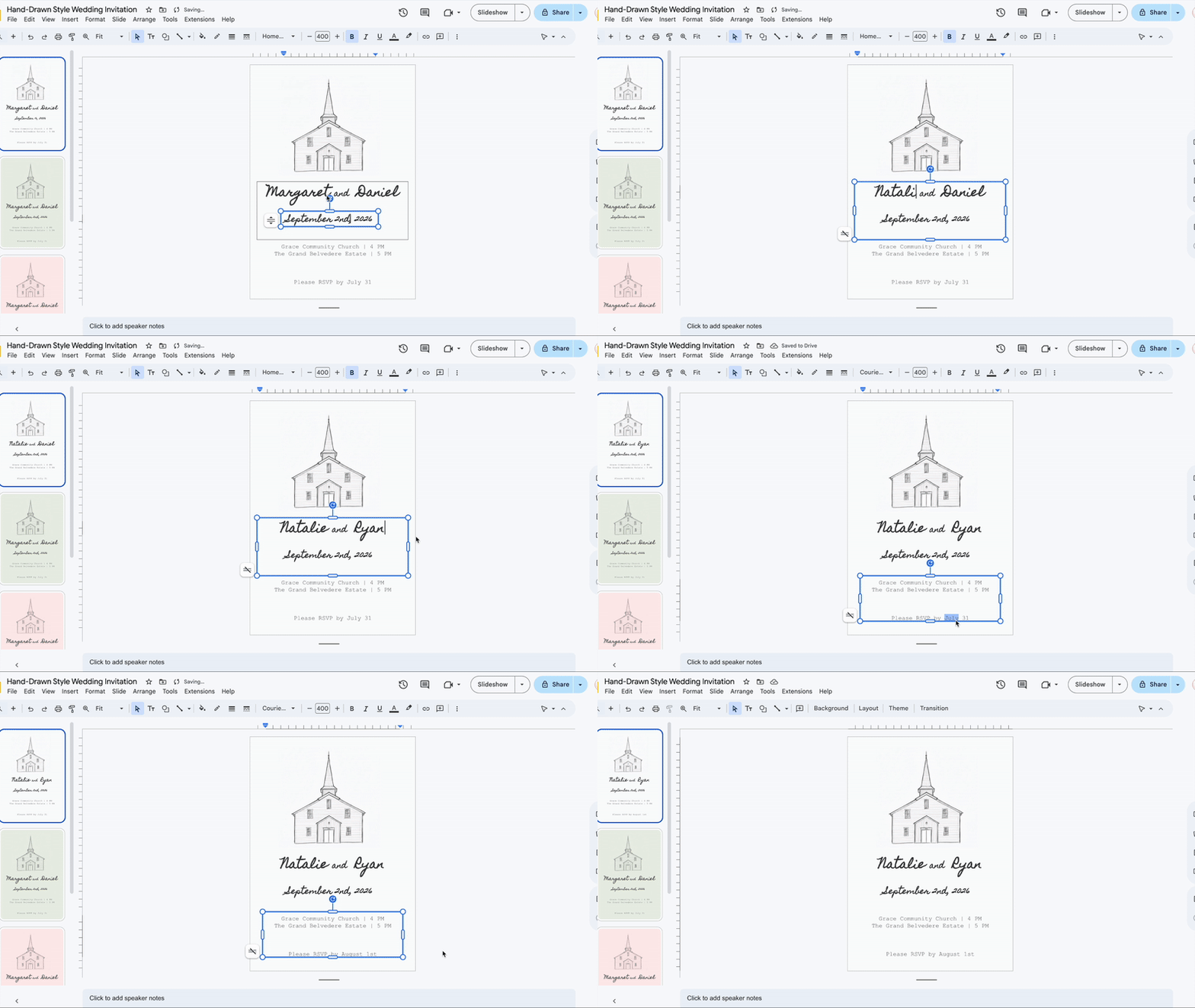
- Access here to create your own copy. Paste your AI-generated drawing into Google Slides template and started editing the names and ceremony details. Then, you can move the elements to find a good balance between the image and the text.
- [Optional] Add a custom color overlay: If you want something other than a plain white background, you can add a color wash. I created a rectangle shape over the slide and changed it to a sage green. Since the shape is transparent, it adjusts the color of both the illustration and the text, making the design feel cohesive. Just a reminder: if you use a colored version, you’ll need to drag the colored shape to the side to edit the text or image behind it, then just slide it back when you’re done.
4) Export for printing or digital sharing
- When you’re finished editing, how you download the file matters:
- For printing: Download as a PDF. This is the best format for high-quality print.
- For web sharing: Download as a PNG. This is better for sending via text or email.
- Get the template: I’ve created three versions (white, pink, and green) which you can find linked for free in the description. You just need a standard Google account to edit them. Access it here.
All the instructions on how to edit the template and how to create your custom venue drawing Invitation are in the file.


You May Also Like
Taylor inspired “The Life of a Showgirl” wallpaper: Free download